Ask a Question
Search BRUIN Support for help articles.
Kaltura for Bellevue University Students
Overview
Kaltura is a multimedia platform integrated into Blackboard that allows you to record, upload, edit, and share video or audio content for assignments and discussions. It includes automatic captions for accessibility and editing tools to enhance your content. Kaltura is available to all students at Bellevue University.
Kaltura Access
Kaltura offers two ways to access your media. Use the table below to compare the options, then follow the steps in the sections that follow.
| Access Method | Best For | What You Can Do |
| Course Tools (Kaltura My Media) | Managing all your recordings | Record, upload, edit, caption, download, and delete media |
| Within Assignments or Discussions | Submitting Work | Record with Express Capture, upload, and embed media |
Course Tools (Kaltura My Media)
Use this option when you want to access, organize, or edit all your recordings in one place.
1. From within the Blackboard interface, select Tools > Kaltura My Media.
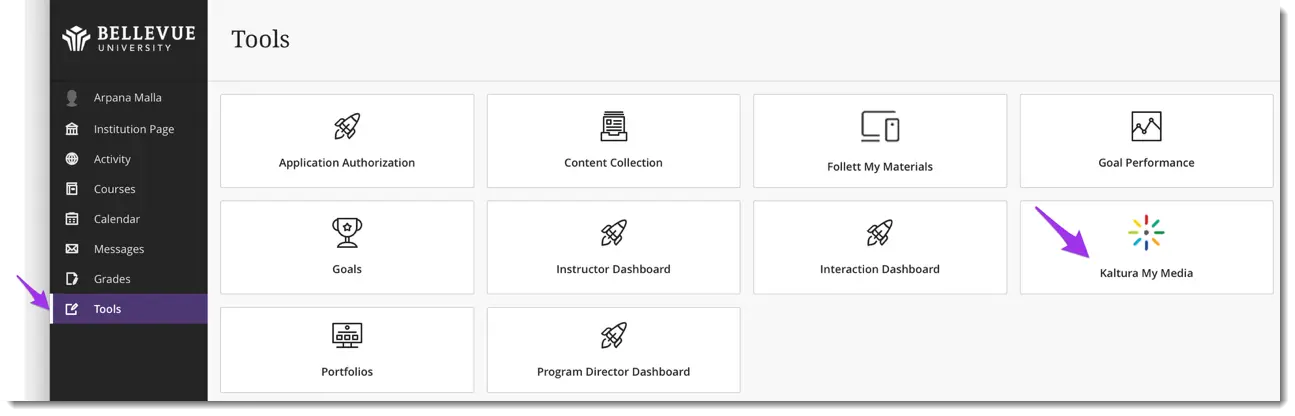
2. Authorize Kaltura, if prompted, by selecting Allow. If the Allow button doesn’t appear, clear your browsers cache and cookies or switch to Firefox.
3. You will access the Kaltura My Media (your Kaltura library), where you can record, upload, edit, caption, download, and manage all your recordings. We encourage you to delete duplicate recordings and save backups on your personal computer.
Within Assignments or Discussions
Use this option when you need to record or upload media directly as part of an assignment or discussion post.
1. Navigate to the submission area for your assignment or discussion.
2. In the text editor, select the Insert Content (+) icon.
3. Select Content Market, then choose Kaltura Embed – LTI.
4. The Kaltura Embed window opens, allowing you to record, embed an existing recording, or upload an existing file to submit with your assignment or discussion post.
Submitting Media in Assignments & Discussions
This section guides you through the different ways to record or upload media for your assignment or discussion submission.
Record with Express Capture
Use this option when you want to record a video quickly using your webcam, microphone, or screen without installing software. Before recording, check your browser's compatibility and system requirements.
1. Navigate to the submission area for your assignment or discussion.
2. In the text editor, select the Insert Content (+) icon.
3. Select Content Market, then choose Kaltura Embed – LTI.
4. In Kaltura, select + Add New → Express Capture.
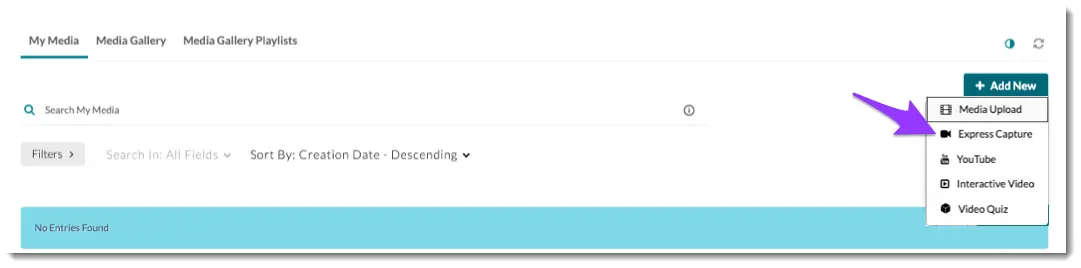
5. Allow camera, microphone, and screen sharing permissions if prompted.
6. Use the controls to select settings for the microphone, camera, and screen recording.
7. Select Record → 3-second countdown → record your message.
8. Select Stop → Preview.
9. Choose Record Again (optional), Download a Copy (optional), or Use This to upload.
10. Enter a Display Name → Save and Embed (for assignment/discussion) or Save (to library).
11. In the Assignment or Discussion, select Insert → Submit/Post. Please delete any duplicate video recordings.
For additional information, watch this video or review this detailed guide.
Upload Existing Media
Use this option when you already have a video or audio file saved on your device and need to submit it.
1. Navigate to the submission area for your assignment or discussion.
2. In the text editor, select the Insert Content (+) icon.
3. Select Content Market, then choose Kaltura Embed – LTI.
4. In Kaltura, select + Add New → Media Upload.
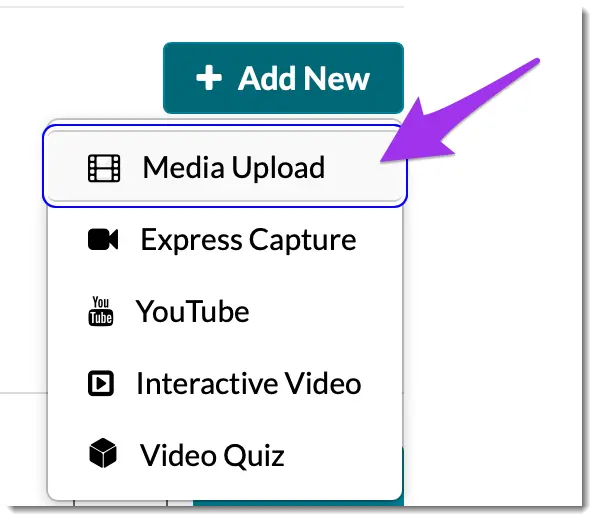
5. Select Choose a file to upload → select your file → upload begins.
6. After uploading, complete the details (Title/Display Name).
7. Select Save (library) or Save and Embed (assignment/discussion).
8. Back in the editor, select Insert → Submit/Post.
Edit Your Media
This section shows you how to make basic edits to your recordings, such as trimming or correcting captions.
Trim & Fade
Use this option to make quick edits to your media, such as trimming the beginning or end or adding simple fades.
1. Log in to Blackboard.
2. Select Tools > Kaltura My Media → Find your media file to edit.
3. Select Edit (pencil icon).
4. Select Launch Editor (right side).
5. Use the timeline to Trim start/end; set Fade In/Out as needed.
6. Select Save (replaces original) or Save a Copy (enters a new title) → Create.
7. Select OK to confirm to save.
8. Exit the editor (bottom right arrow) → I’m Sure.
Edit Captions (Accessibility)
Use this option to check your auto‑generated captions and make corrections.
1. Log in to Blackboard.
2. Select Tools → Kaltura My Media → Select your media file to edit.
3. Select Edit (pencil icon).
4. Scroll down and select Captions → Edit Captions.
5. In the Closed Caption Editor, correct wording, punctuation, names, and technical terms.
6. Select Save → confirm.
Manage Your Library
Use this section to learn how to manage your media library in Blackboard by accessing your recordings through Tools > Kaltura My Media.
Download Your Media
Use this option to download a personal copy of your media before you lose access, such as before graduation.
1. Log in to Blackboard.
2. Select Tools → Kaltura My Media → Select your media file to download.
3. Select Edit (pencil icon) → Downloads.
4. Under Available Formats, enable Source.
5. Select Save → Go to Media.
6. Select Download → choose the Download icon to save your device.
• For additional information, watch this video.
Delete Media
Use this option when you want to remove recordings you no longer need from your Kaltura library. It is recommended that you do this regularly.
1. Log in to Blackboard.
2. Select Tools → Kaltura My Media.
3. Select the Trash icon next to the item you wish to delete.
4. Read the warning → select Delete to confirm.
FAQ
What should I do if I don’t see the Allow prompt during first-time authorization (“Learn Authorize”)?
Clear your browser cache and cookies, then try again. If the issue persists, switch to Firefox.
How can I fix recording issues?
Ensure your operating system and browser allow access to the camera, microphone, and screen sharing. Also, close any other apps that use the camera (e.g., Zoom or Teams).
• Windows Camera, Microphone, and Privacy
• Mac OS Control Access to the Camera
• Mac OS Control Access to the Microphone
• Mac OS Control access to Screen and System Audio Recording
To provide feedback on this article, contact Bruin Support Services!