Ask a Question
Search BRUIN Support for help articles.
How do I adjust or change my financial aid award?
Adjusting Loans
After you have accepted the Federal loans in your financial aid package, you can adjust them up to the date of their second disbursement (meaning your second term’s disbursement).
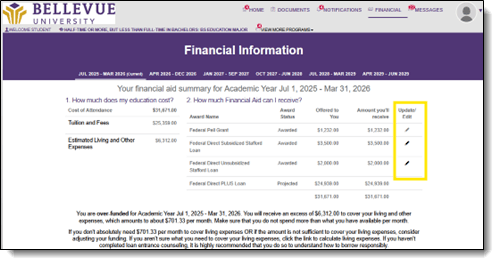
1 - Once in the financial aid portal, open the FINANCIAL tab.
2 - You will then click the pencil icon next to the fund they wish to adjust.
3 - Once in the Accept Your Funds page, you should click ‘Select Term to Take Action’ to begin.
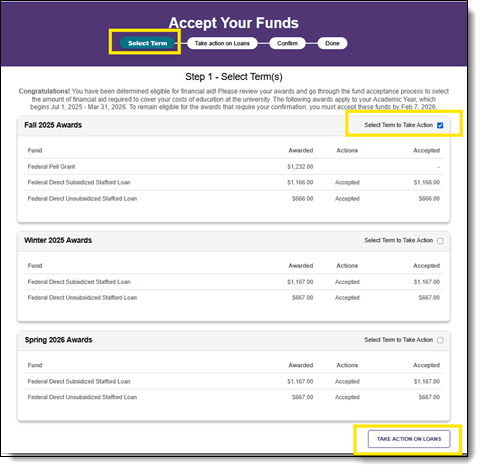
NOTE: The amount you previously selected will appear in the accepted amount column on the initial page only. Going forward, you will only see the full amount of the award you are eligible for. If you need to accept more or less than what you previously accepted, you should double check the amount previously accepted and make a mental note for adjustments going forward.
4 - On Step 2 (Accept Loans), you can either accept the full amount offered, accept a lower amount, or decline loans altogether.
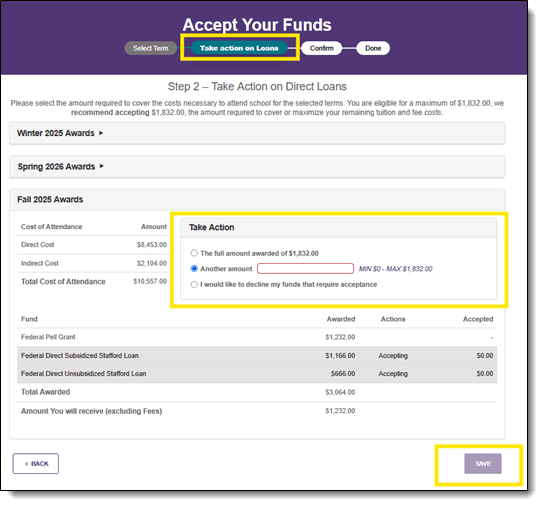
• If you’d like to accept the full amount of the award, you’re eligible for, you should select the first option, and then click “Save.”
• If you’d like to make an adjustment to the award (adding or reducing the amount previously accepted), you should select the second option. Then, enter the total amount you’d prefer, up to the full amount of both loans, and finally click, “Save.”
o Example A: You were awarded $20,500 in Loan A and $26,667 in Loan B. If you previously accepted the full $20,500 for Loan A and $20,000 for Loan B, but want to increase Loan B by $5,000, you should enter $45,500. Then you should double check their loan amounts are correct and click ‘continue.’
o Example B: You were awarded $20,500 in Loan A and $26,667 in Loan B. If you previously accepted the full $20,500 for Loan A and $20,000 for Loan B, but want to decrease Loan B by $5,000, you should enter $35,500. Then you should double check their loan amounts are correct and click ‘continue.’
• If you would like to decline the loans entirely, you should select the third option, and then click ‘continue.’
5 - You will then be brought to Step 3 where you will confirm the loan/award amounts in your package. You can use the pencil icon to adjust funding further, such as how much you want disbursed per term. The totals should add up to the award amount they’ve selected in Step 2.
• For example, if you accept $20,500 for their award, term 11 and term 12 together should add up to $20,500.
• Once you’ve adjusted the term funds, you should click ‘continue.’
• If you accepted the wrong amount, accidentally declined the loans, or want to start the process over again, you can navigate back to Step 2 ‘Accept Loans’ at the top of the screen to readjust the amount of the loans you’re accepting.
6 - You’ll then be prompted to read through the Electronic Signature Consent message and click ‘I Accept.’ Then you should enter their Student ID and last name to sign. Finally, they can click ‘Sign & Finish’ to complete.
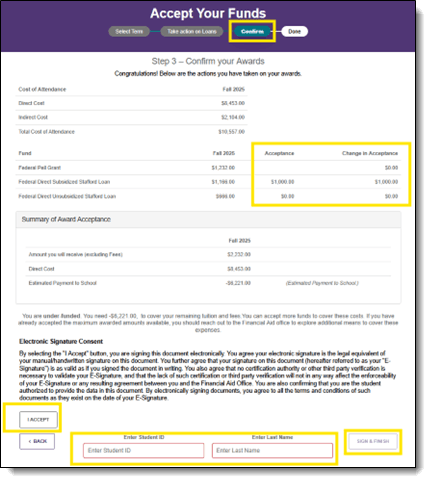
NOTE: The ‘Sign & Finish’ button will remain ghosted until you’ve clicked ‘I Accept’ and entered the required information.
7 - Once you click ‘Sign & Finish,’ you’ll be shown a confirmation message that indicates you’ve successfully completed the adjustment process for the academic year. You can click ‘OK.’
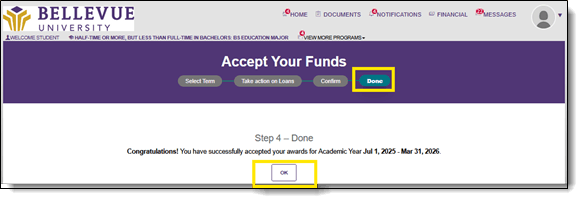
8 - You’ll then be brought back to the Financial Tab which will show the accepted, adjusted, or rejected awards in their package.
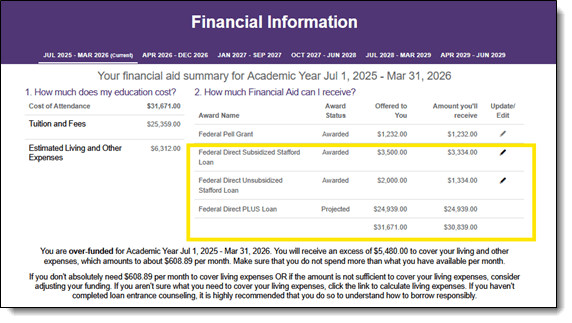
9 - After accepting/adjusting/rejecting loans, you can make further adjustments to the funds up to the date of the second disbursement by clicking the pencil icon next to the fund you wish to adjust. This will take you through the acceptance process all over again.
NOTE: After the date of their second disbursement, the pencil icon will be greyed out. You will need to contact an Office of the Financial Aid administrator to adjust beyond this point.
End of Procedure
To provide feedback on this article, contact Bruin Support Services!