Ask a Question
Search BRUIN Support for help articles.
How do I grant proxy access to my parent or guardian in the Student Financial Aid Portal?
Granting Parent/Guest Access
Students can grant access to parents and guests. Only students can grant access to parents/guests. The parent/guest will need to have a valid email address where they will receive the email link once the access has been granted.
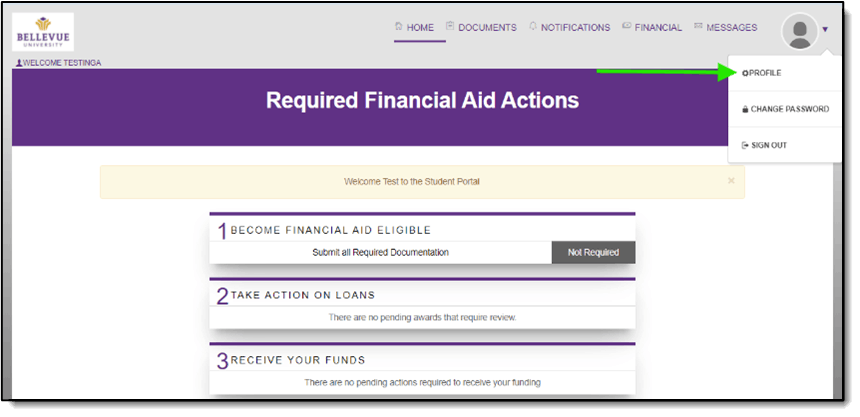
1 - Click on the Profile link in the dropdown menu.
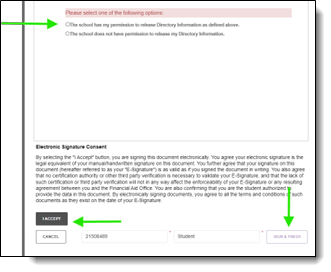
2 - Complete the FERPA consent task.
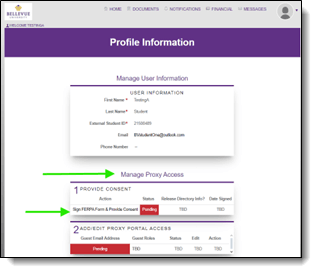
3 - To grant delegated access, click the ADD USER link in section 2, ADD/EDIT PROXY PORTAL ACCESS.
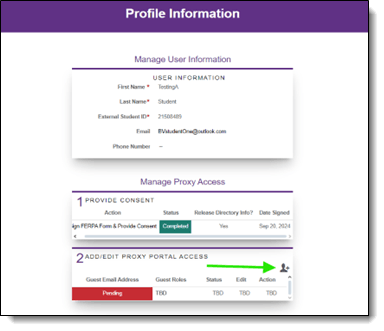
4 - Enter the parent/guest email and select the role, then click Save.
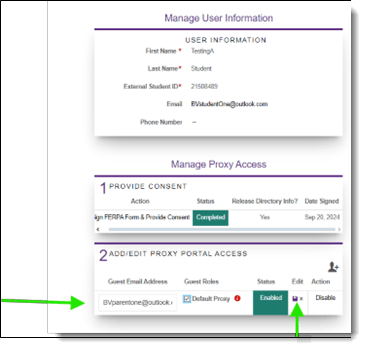
5 - Parent(s)/Guardian(s) will receive link to set password.
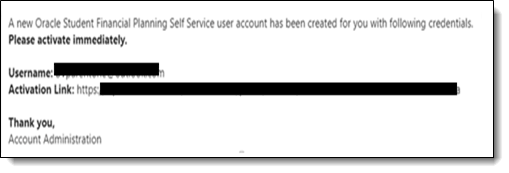
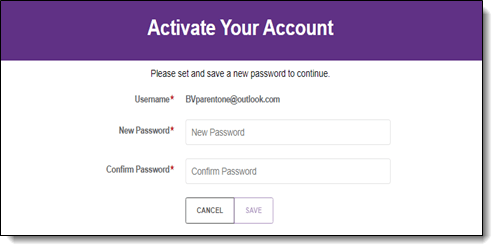
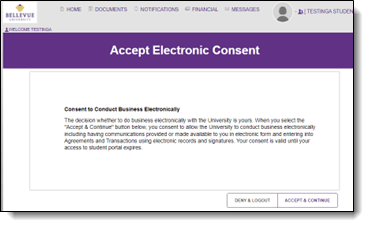
6 - Once they log on, they will get the electronic consent agreement.
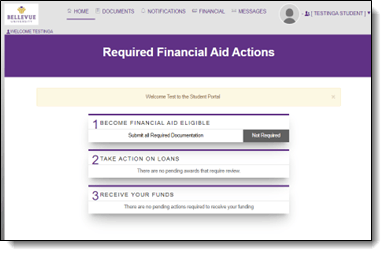
7 - The Parent/Guest portal page has less action items and is limited on what they can view based on the security role that has been assigned.
End of Procedure
To provide feedback on this article, contact Bruin Support Services!