

officially enrolled social media graphics

welcome to Bellevue University
You’re officially part of the pack. Now, share your exciting milestone with your online community! Use the downloadable social media graphics and templates below to spread the word—you’ve earned this moment, and your community will love celebrating it with you.
Tag @BellevueUniversity and include #MyBUbeginning in your post, and we’ll enter you into a drawing for Bruin swag!
We’d love to keep cheering you on, too! Head on over to our socials and drop us a comment on our “Welcome to the Pack” post or DM us with your major. While you’re there, be sure to hit those Like and Follow buttons: Facebook, Instagram, LinkedIn, and TikTok for inspiration, support, and updates built around one thing: you.
Officially Enrolled graphics
Download any of the following graphics to post on your social feed or story. For feed optimization, select:
Square (1:1)
- Best for: General feed posts on Instagram, Facebook, and Pinterest
- Reason: This is a versatile format that works across both desktop and mobile, and is often the standard for profile pictures and collection pins.
- Example Size: 1080 x 1080 pixels



Vertical (9:16)
- Best for: Stories, Reels, TikTok, YouTube Shorts
- Reason: This format takes up the full mobile screen, making it the most engaging for vertical feeds.
- Example Size: 1080 x 1920 pixels

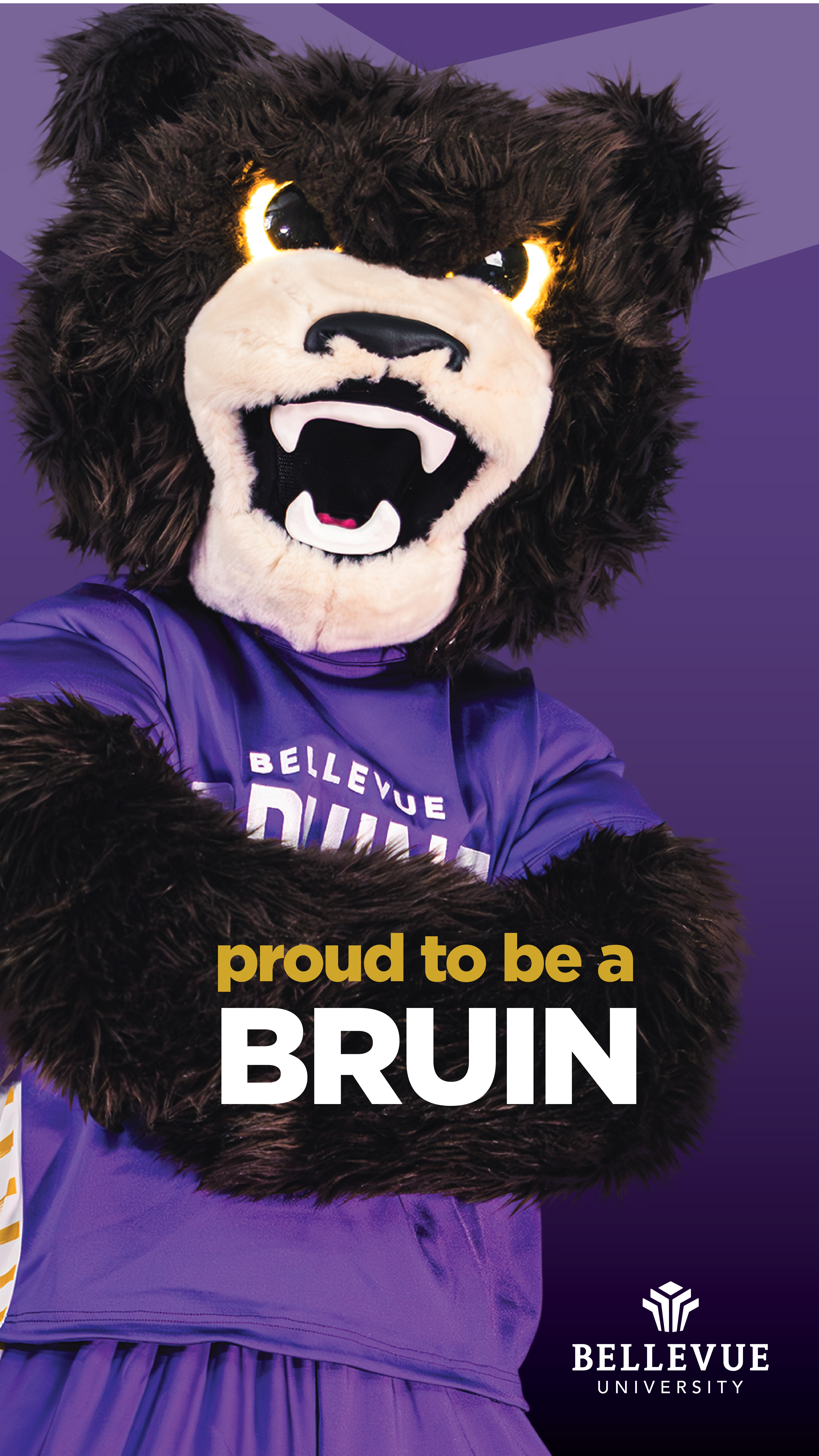
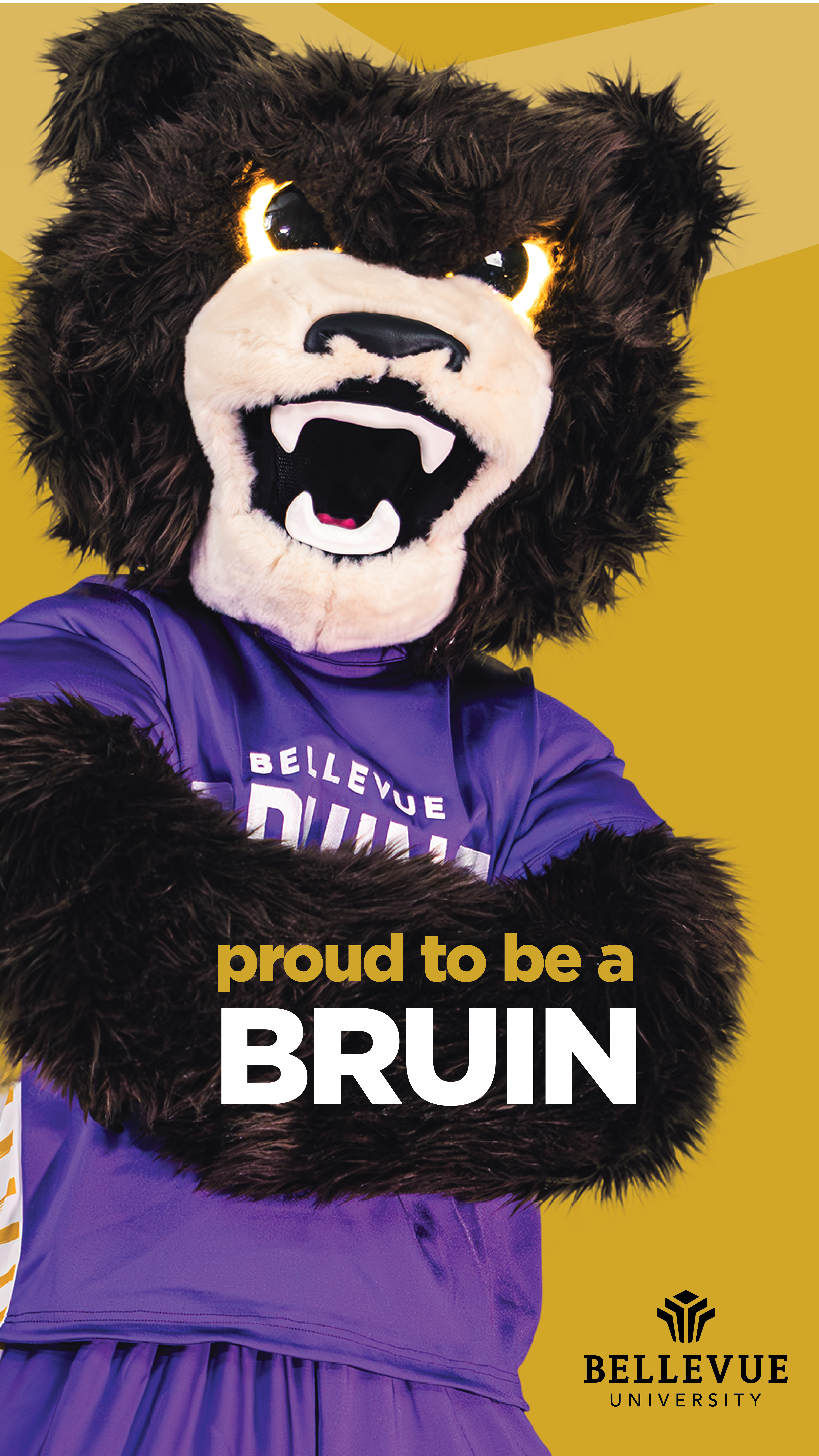
Personalize your Instagram Story
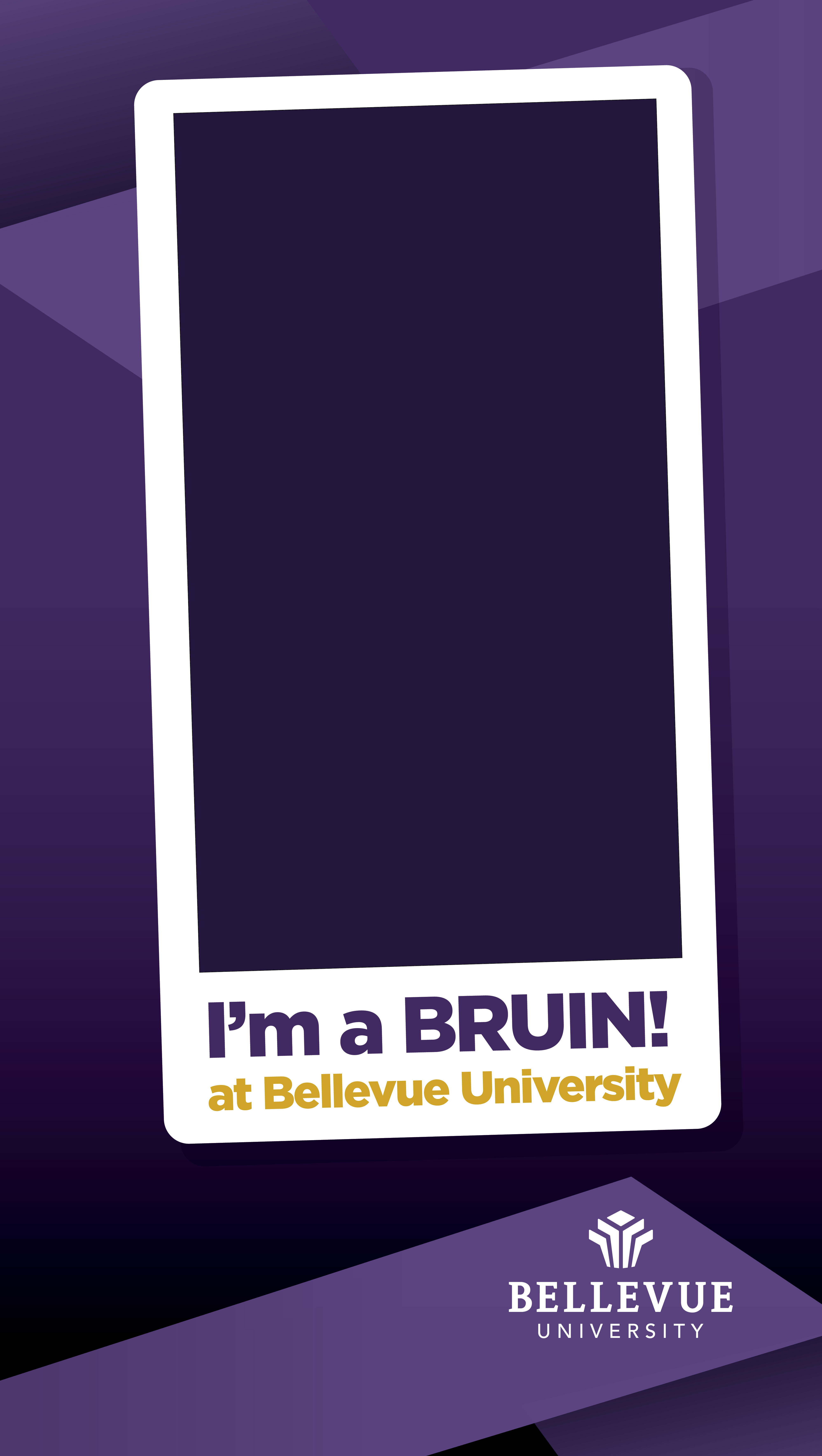
Use these graphics to personalize your Story. Upload as your Story background and add a Frame using the Stickers feature. Take your selfie for the frame and post.
STEPS
- Take a selfie
- Tap the plus sign in the top left
- Tap the square at the bottom
- Choose the background photo
- Tap the sticker menu item
- Choose frames
- Choose your selfie taken earlier
- Write your caption & hashtag: #MyBUbeginning
- Position your frame on your background
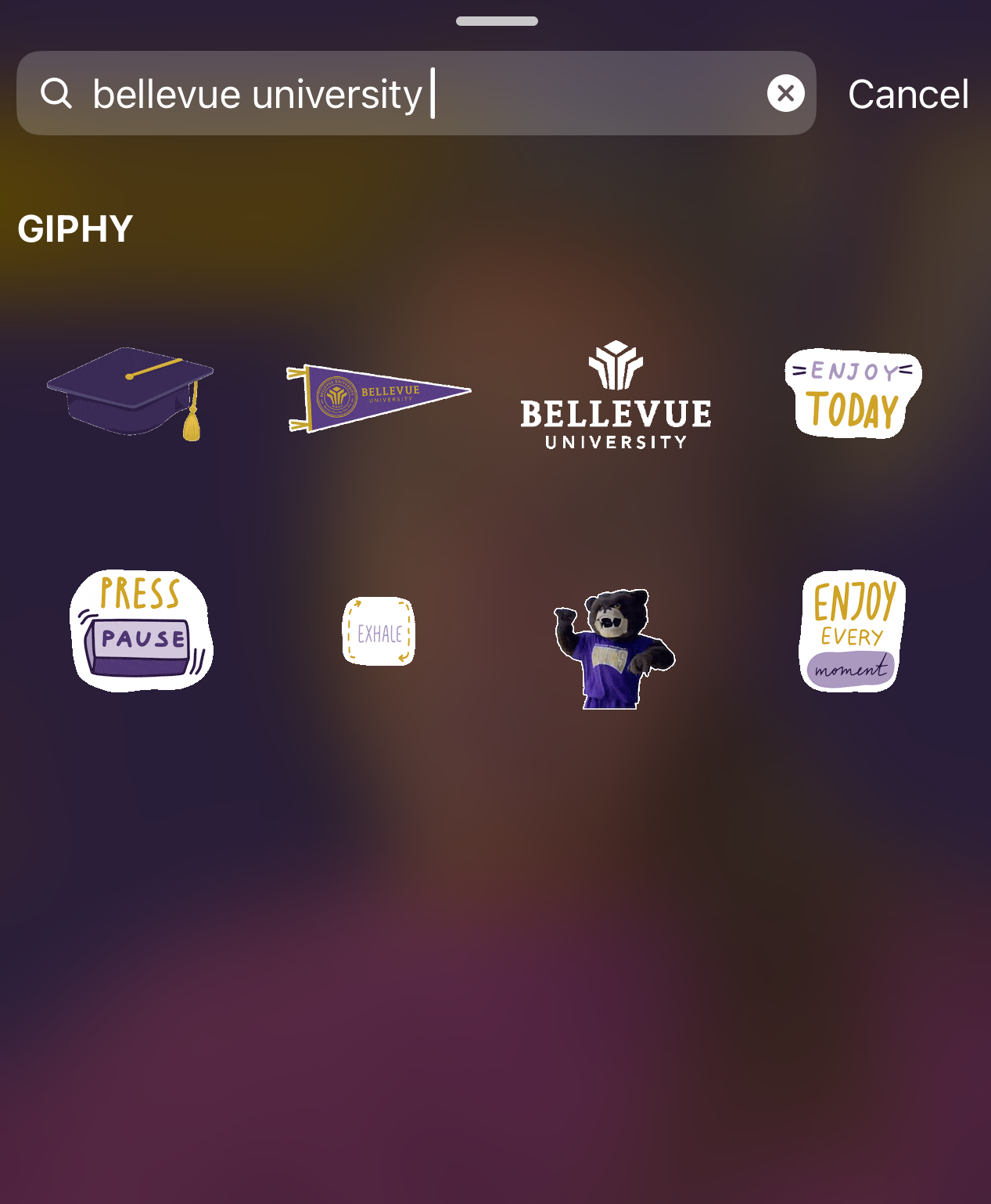
Search the GIF library for “Bellevue University” and select Brutus the bear, the Bellevue University logo or a pennant to add to your Story.


These graphics can be used with Instagram’s green screen effect to further customize your story.
STEPS
- Tap the plus sign in the bottom center to create
- Tap the image icon on the left. Do not select the background you saved.
- Select “GreenScreen” from the effects on the left side
- Select the background you saved
- Tap the green circle to begin recording



Personalize your Snapchat Story
Use these graphics to personalize your Snap or Story.
STEPS
- Tap the camera icon in the bottom center to create
- Tap the drop-down menu in the upper right screen and then select “Green Screen”
- Select the background you saved
- Snap your selfie or record a video to share

Create a TikTok
Download these backgrounds to use with the green screen effect for your video.
STEPS
- Tap the plus sign in the bottom center to create
- Effects are to the left of the record button.
- Select the green background with an image icon on top
- Select the background you downloaded
- Record your video.
- Make it your own by adding sound, filters, gifs