Ask a Question
Search BRUIN Support for help articles.
How do I upload documents to the Financial Aid Student Portal?
Uploading Student Documents for Financial Aid
1 - To upload a file, click the "upload" icon to upload documents to the financial aid portal.
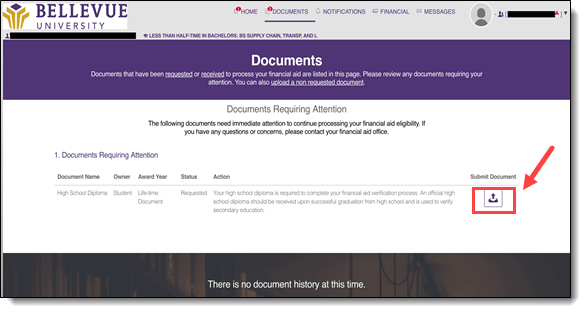
NOTE: The file type used for uploading documents is PDF.
2 - Once the file is selected to upload, the file name will appear in the first box, and a preview of the file will appear in the box below. Required fields will appear to the left of the document.
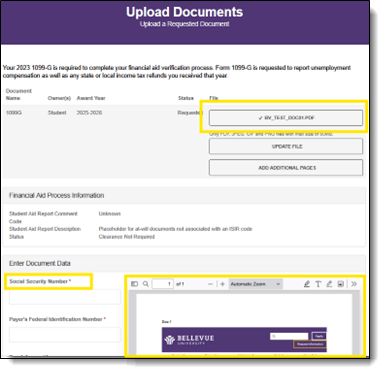
NOTE: A confirmation of submission pop-up will appear. Click OK and be redirected back to the Documents tab.
The document submitted will then appear in the Documents History section of the Documents tab.
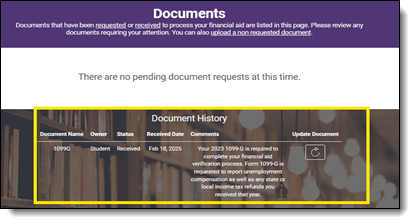
If you need to re-submit a document, the document request will appear in the "Documents Requiring Attention" section and you can upload a document to replace the one previously uploaded.
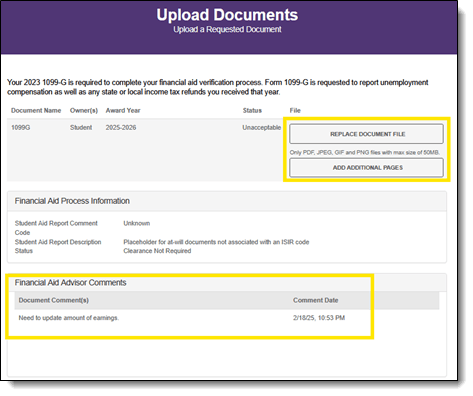
NOTE: If there are additional instructions, those will appear in the Financial Aid Advisor Comments section. This can occur when the reviewer has deemed the document as unacceptable or has set it to rejected status.
End of Procedure
To provide feedback on this article, contact Bruin Support Services!