Ask a Question
Search BRUIN Support for help articles.
What is Leganto and How Do I Use It?
Leganto Overview
Leganto is a tool that provides easy access to course materials, including books, journal articles, websites, and PDFs available from the library or on the web. These resources are organized into reading lists, created by your instructors, within the Blackboard Ultra Course. This organization allows you to find learning materials quickly and efficiently.
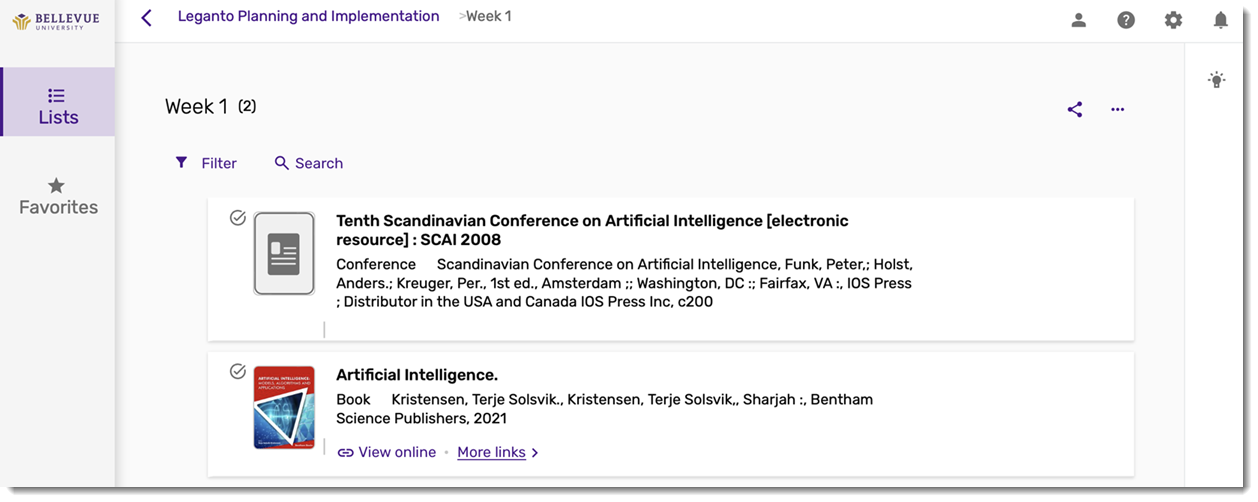
Below is the Leganto welcome screen with a list page organized by weeks and topics.
ACCESS TO LEGANTO
Once Leganto is added to your Blackboard Ultra course, you can access it by clicking either the embedded version of Leganto or the Leganto link provided in the course content as displayed below.
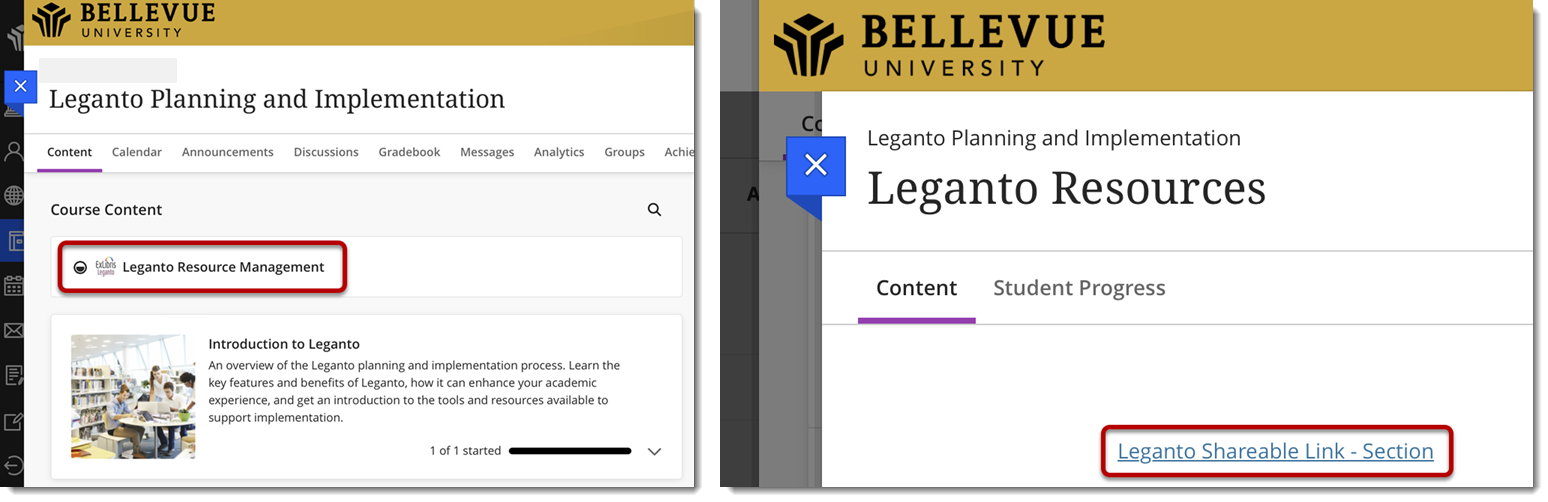
After selecting a link, as shown above, the Leganto welcome screen with a lists page organized by weeks and topics will open.
LEGANTO FUNCTIONALITIES
Select the link provided in each section below to access additional information about the topic.
Managing Lists
- Adding Items to Favorites: You can add items from the instructor's list or create your personalized favorites by adding items from the library, manually entering them, or uploading a file. By adding resources to your favorite list, you ensure that you maintain access to these resources across courses as a Bellevue University-enrolled student.
- Adding Private Notes: You can add personal notes or comments on specific items within the reading list for future reference.
- Marking Items as Done: You can mark items as you complete them to stay organized and keep track of your progress.
Working with Lists
- Exporting a Single Item in a Specific Reference Format (Quick Cite): You can use the Quick Cite tool to create a citation for a single resource by selecting your preferred bibliographic style, such as APA (American Psychological Association).
- Marking Link as Broken / Report Problem with File / Report Missing Link: To report any broken or missing links or issues with files on reading lists, simply submit your report, and the library system will respond to these inquiries.
Additional Information
- Mobile Experience: Leganto is accessible on mobile devices, allowing you to view reading lists, although editing features are limited. Editing features are available on Windows or Mac.
- Additional features related to Leganto are available at LibGuide: Leganto for Students. All the Functionalities mentioned in the LibGuide are available, except for "Export to RefWorks" and "The External Citation Manager".
To provide feedback on this article, contact Bruin Support Services!