Ask a Question
Search BRUIN Support for help articles.
How do I navigate the Financial Aid Student Portal?
Navigating the Student Financial Aid Portal
Home
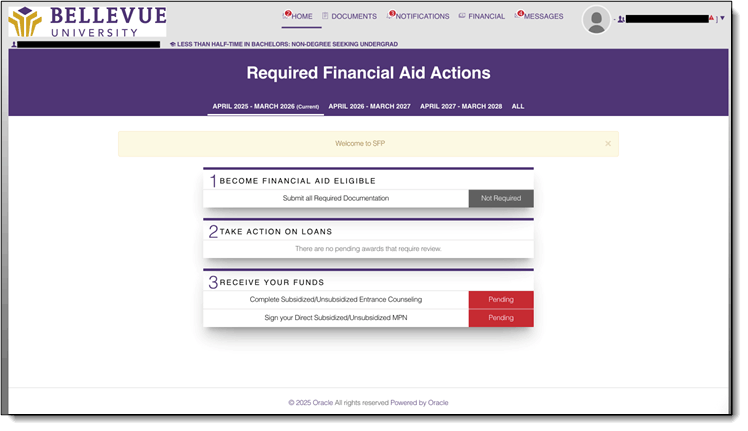
The Home page will show any completed actions, or actions required for the student to become financial aid eligible, review their funds, or receive their funds:
Notifications
The Notifications tab will show open notifications that require your attention and action. It will also display a thread of notifications history that are already completed:
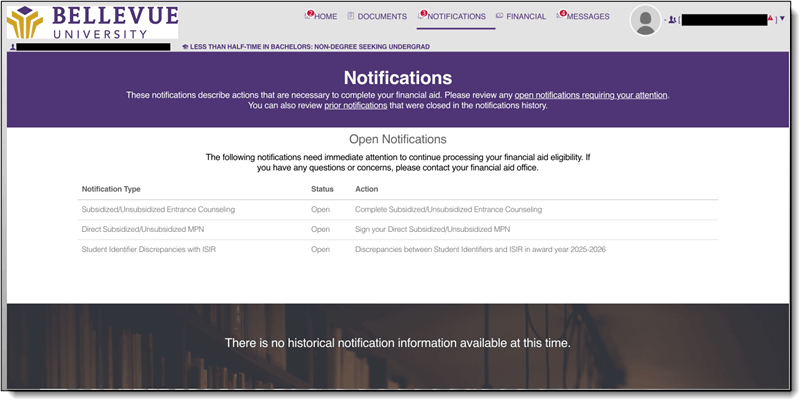
NOTE: Notifications in this tab are not email communications. These are the notification types that the system tracks and checks off (like a to-do list) for you to receive funds.
Financial
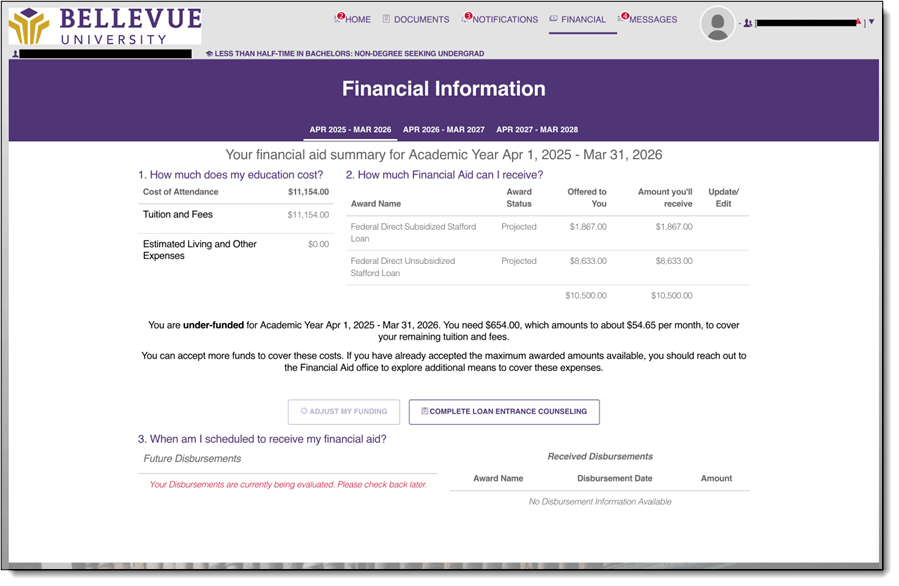
The Financial tab will show your cost of attendance (COA), financial aid award package, and the disbursement schedule for available funds.
To view fund specific information, click the ▼ next to the fund:
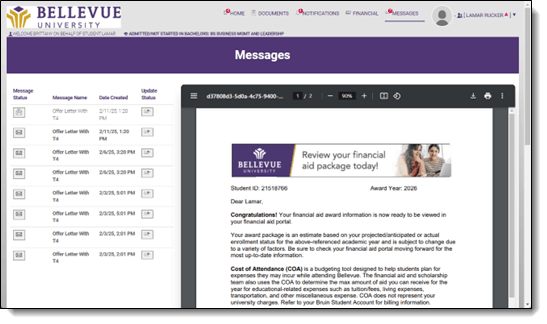
Messages
The Messages tab will show email communications from the Financial Aid Office, highlighting any communications regarding their financial aid action items:
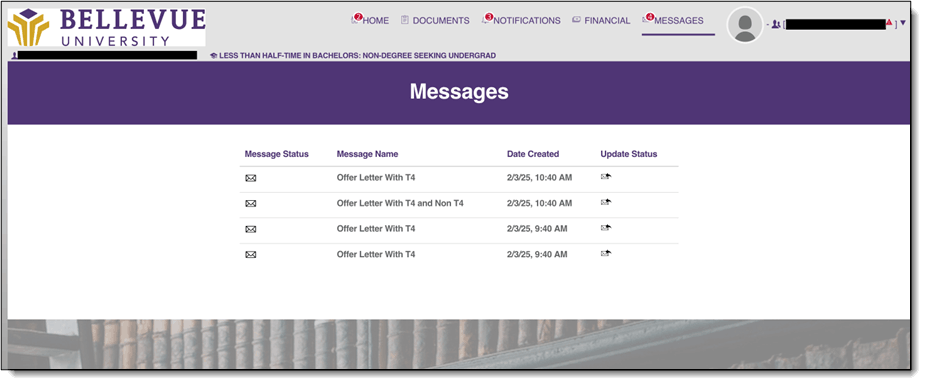
NOTE: You can click on the envelope icon to view the email. You will also receive these email communications in your Bellevue University student email.
Documents
The Documents tab will show documents required for you to upload to continue processing financial aid eligibility. You will be notified by the Office of Financial Aid if, when, and what documents to upload to the Financial Aid Portal:
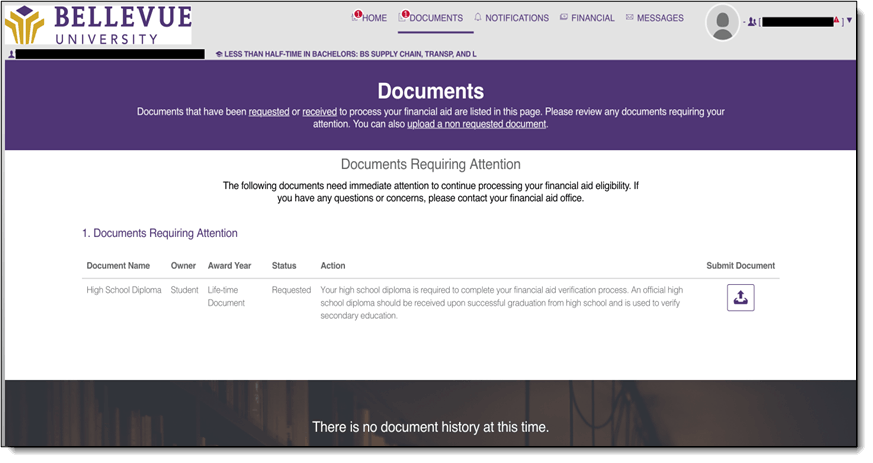
NOTE: The Owner column will indicate whether the information requested is yours or parent(s)/guardian(s) depending on whose information is on the FAFSA.
To provide feedback on this article, contact Bruin Support Services!